
The beginner's guide to reviewing indie browser games on PC and mobile
Last updated 17 October 2026
Most games posted on Reviewder run straight in a web browser — no install — on a computer, a phone, or both, and were built by a solo developer or a small team who want people to find them. Your clip may be the first way a game reaches its first players. This guide covers the basics that keep viewers watching to the end and make them want to tap the link and play.
Reviewing an app or website? Read the beginner's guide to reviewing apps1. Before you start: talk to the developer, play it properly
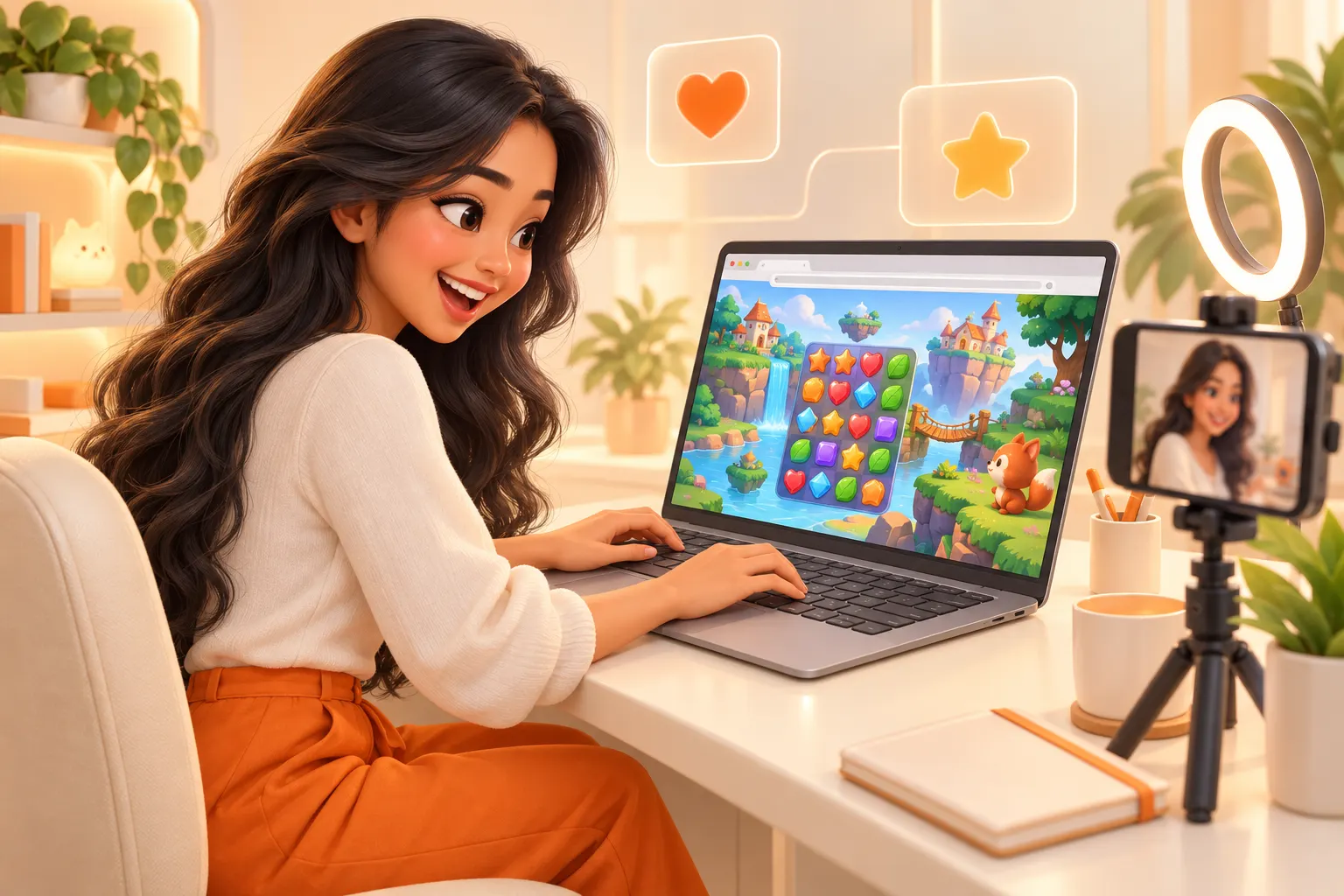
Indie developers usually do everything themselves. Agreeing the details up front gets you both the clip you want. Ask before you start:
- The link to play the game, and the link to put in the clip or caption (the same one, or a separate tracking link)
- Whether to play on a computer, a phone or both, and which browser they recommend
- Which part of the game or which features to show, known bugs, and anything they don't want mentioned yet — they can ask you to keep a feature quiet, but never require a positive verdict
- Whether they want just the clip, or your feedback from playing as well
Many browser games play in rounds of a few minutes. Play several rounds until you understand how it works and know the most fun moment, then record. Notice how long the first load takes — your viewers will see the same.
Prepare your device and browser
- Update your browser to the latest version, such as Chrome, Safari or Edge
- Close tabs you aren't using so the game runs smoothly, and if it behaves oddly, try turning off extensions such as ad blockers
- Turn on Do Not Disturb on both computer and phone
- Use a browser window with no bookmarks, history or personal accounts showing — for example a separate browser profile just for recording
Before recording, hide the bookmarks bar, other tabs, notifications and any signed-in account names. If the game needs an account, ask the developer for a test account. Don't let your personal details end up in the clip.
2. How to record a browser game
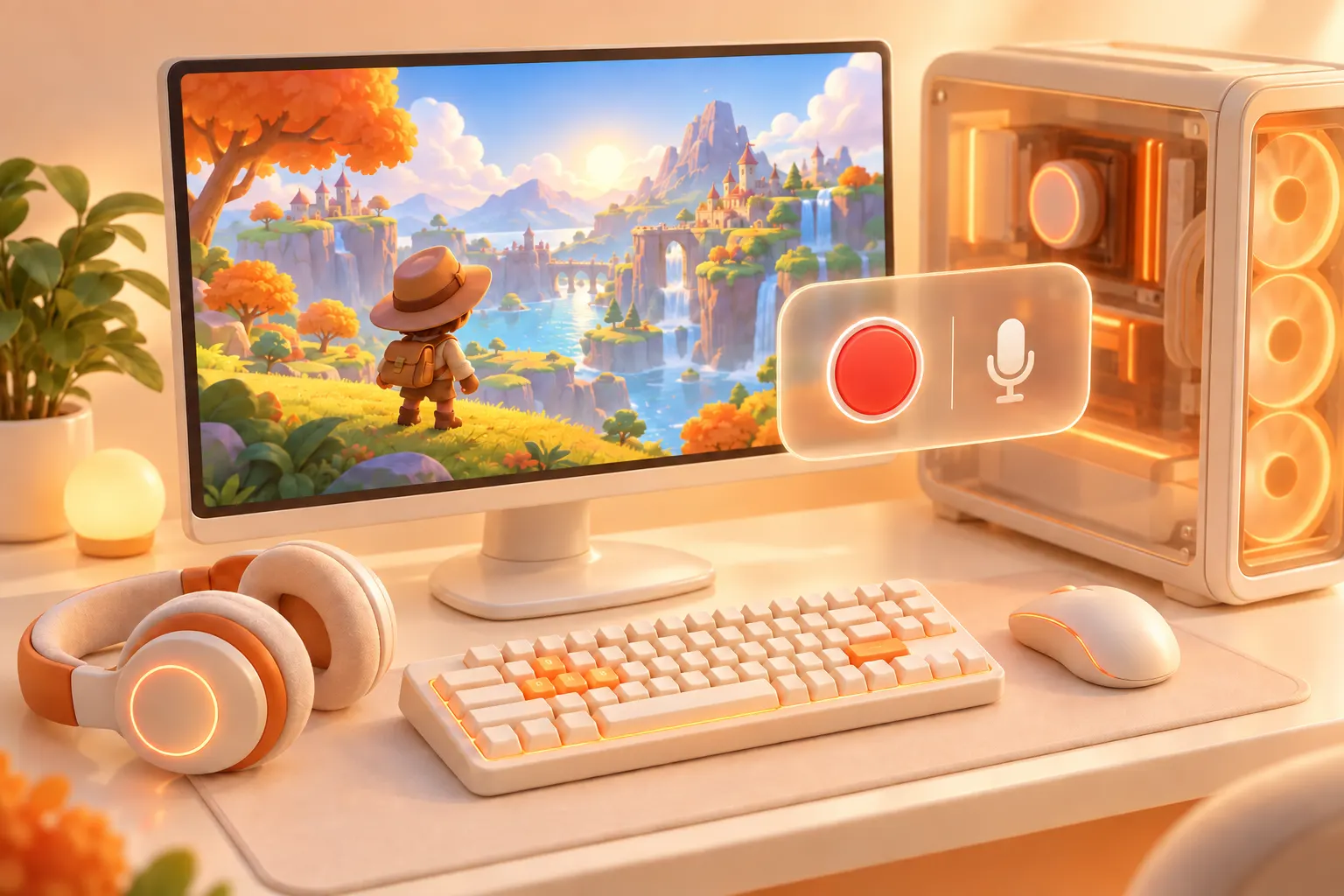
On a computer
- Make the game fill the screen: use its fullscreen button if it has one, or press F11 on Windows or Control + Command + F on Mac
- If the game sits small in the middle of the page, zoom the browser (Ctrl + or Command +) so it's bigger before recording
- Windows: with the browser window showing the game in front, press Windows + Alt + R in Xbox Game Bar to start and stop recording; clips land in Videos > Captures
- Mac: press Command + Shift + 5 and record just the part of the screen the game occupies
- For finer control of picture and sound, use OBS Studio (free): add a Window Capture source for the browser window and crop to the game
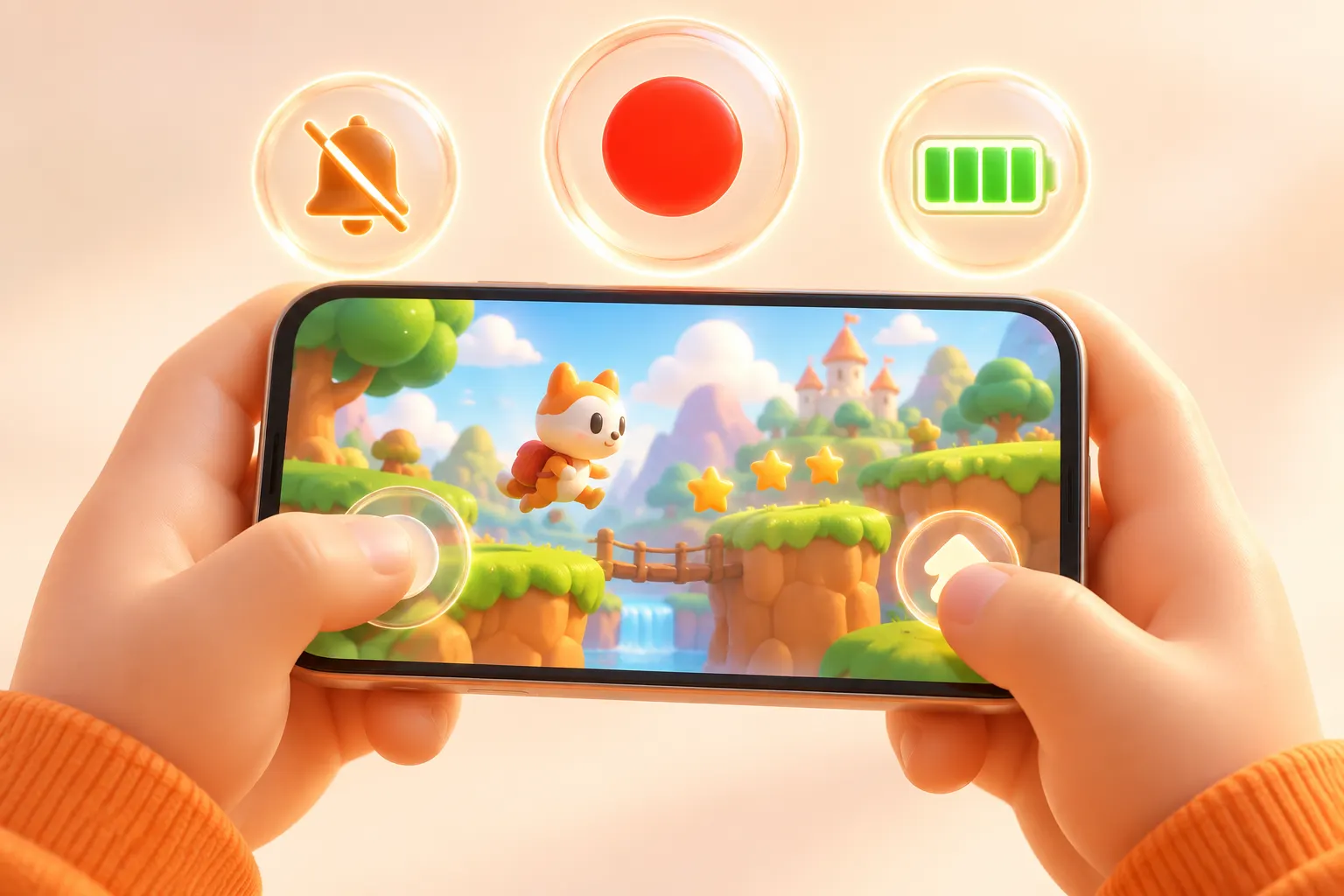
On a phone
- Open the game in Chrome or Safari, and rotate to landscape if it plays sideways
- Use the game's fullscreen button if it has one, or — if the developer supports it — Add to Home Screen and open it from the icon so the address bar disappears
- iPhone / iPad: open Control Center and tap Screen Recording; to narrate as you play, long-press it and turn on the microphone
- Android: swipe down twice for Quick Settings, tap Screen record, and choose device audio or device audio and microphone
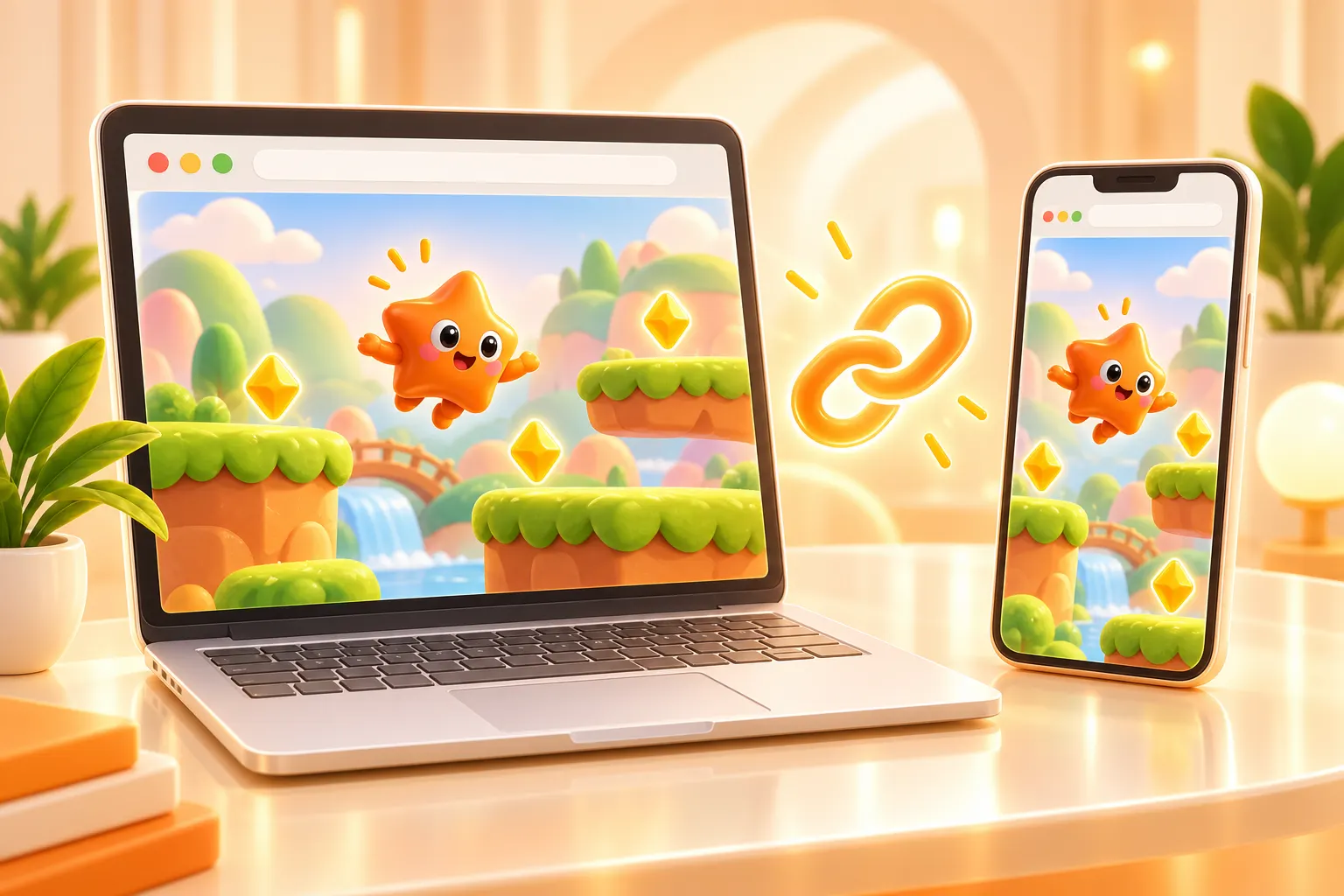
If the game runs on both, play it on a computer and a phone and tell viewers which is more fun, which is easier to control, and whether progress carries across devices, if the game saves it.
Browsers often won't play a page's sound until you click or tap it once. Always make a short test recording first and check the game's audio is actually in it.
3. A structure that gets people to the link

Viewers decide within seconds whether to keep watching, and a browser game has one big advantage: tap and play. Clips that work usually follow this rhythm:
- 0–3 sOpen on the best momentThe most tense, funny or impressive part of the game
- 3–15 sWhat the game isGenre, free to play in the browser, no download, on computer, phone or both
- 15–40 sShow how to playWhat you press, what the goal is, and how it feels to play
- 40–55 sHighlights and what to knowWhat you liked, how smoothly it runs on your device, and any ads or in-game purchases
- 55–60 sInvite them to playWhere the link is, and a challenge to come back with their score or time
Show the link on screen, large and long enough to read. If most of your viewers watch on a computer, add a QR code so they can scan it and carry on playing on their phone.
4. Showing the game so viewers get it
- Show opening the link and landing straight in the game, so viewers see there's nothing to install
- Use footage you played yourself, not promo art or a trailer
- Explain how to play in one sentence, then let the footage do the rest
- Say which device and browser you used, so viewers know theirs will run it
- If the game has ads or in-game purchases, say so plainly — don't imply it's entirely free if it isn't
- If you hit a bug while recording, agree with the developer whether to re-record after a fix or mention it — but don't hide a serious problem viewers are sure to run into
Cut loading and long menus. Add short on-screen text when you explain a control, so viewers watching muted can still follow.
5. Working with indie developers: sound, music and feedback
- Most indie developers have small budgets — agree plainly what the budget buys: what kind of clip, how many, and how many revisions
- Confirm that the game's music and sound can be used in your clip; developers usually made it themselves or licensed it, but check
- Don't add popular music from outside the game — use each platform's commercial music library
- Keep your voice clearly louder than the game audio, and record in a quiet room
- Note what you notice while playing — confusing moments, bugs, parts that are too hard — and send the developer a short summary; feedback like this is worth a lot to an indie game
- If the game updates before you publish, check that what you say still matches the latest version
6. Tell viewers it's a paid review
Saying you were paid doesn't make the clip worse — it makes viewers trust you over time.
- Say it in the video itself and turn on the platform's paid-promotion label: tell viewers out loud or on screen that the developer paid for the review, not only in the caption
- The label goes by a different name on each platform: Paid partnership on Instagram and Facebook, Branded content on TikTok, Paid promotion on YouTube
- Only review what you actually played, and don't promise what the game can't do
- If the game has content unsuitable for children, tell viewers clearly
7. Checklist before you deliver
- Length and aspect ratio match the brief, and the footage runs smoothly
- The game's sound is really there, with your voice louder than it
- No bookmarks bar, other tabs, notifications or personal details slipped in
- The game link on screen and in the caption is right, and tapping it on a phone really opens the game
- Every agreed part of the game is shown, matching the latest version
- Game name spelled right, subtitles correct, hashtags from the brief included
- Paid-content label turned on
- Draft sent to the developer, with revision rounds agreed up front
- After publishing, send the clip link, any agreed stats, and your feedback summary
On a Reviewder job page the poster can copy a draft agreement to discuss with you. Use it to pin down scope, revisions and payment before you start.
8. Pricing indie game reviews
Reviewder never holds money and takes no commission: you set your price and agree payment directly with the developer. The budget sizes on the board are guidance only:
- XS $5–$20
- S $20–$60
- M $60–$150
- L $150–$500
- Most indie game jobs sit in the small-to-medium range; consider offering a package, such as one short clip plus a written feedback summary
- Count all the time: playing enough to understand the game, recording, editing and revisions
- For your first jobs, bid near the developer's budget to build a portfolio, then raise it once you have samples
- If the developer will run your clip as an ad, agree an extra usage fee, and agree how you'll be paid, such as a deposit before starting and the rest on delivery